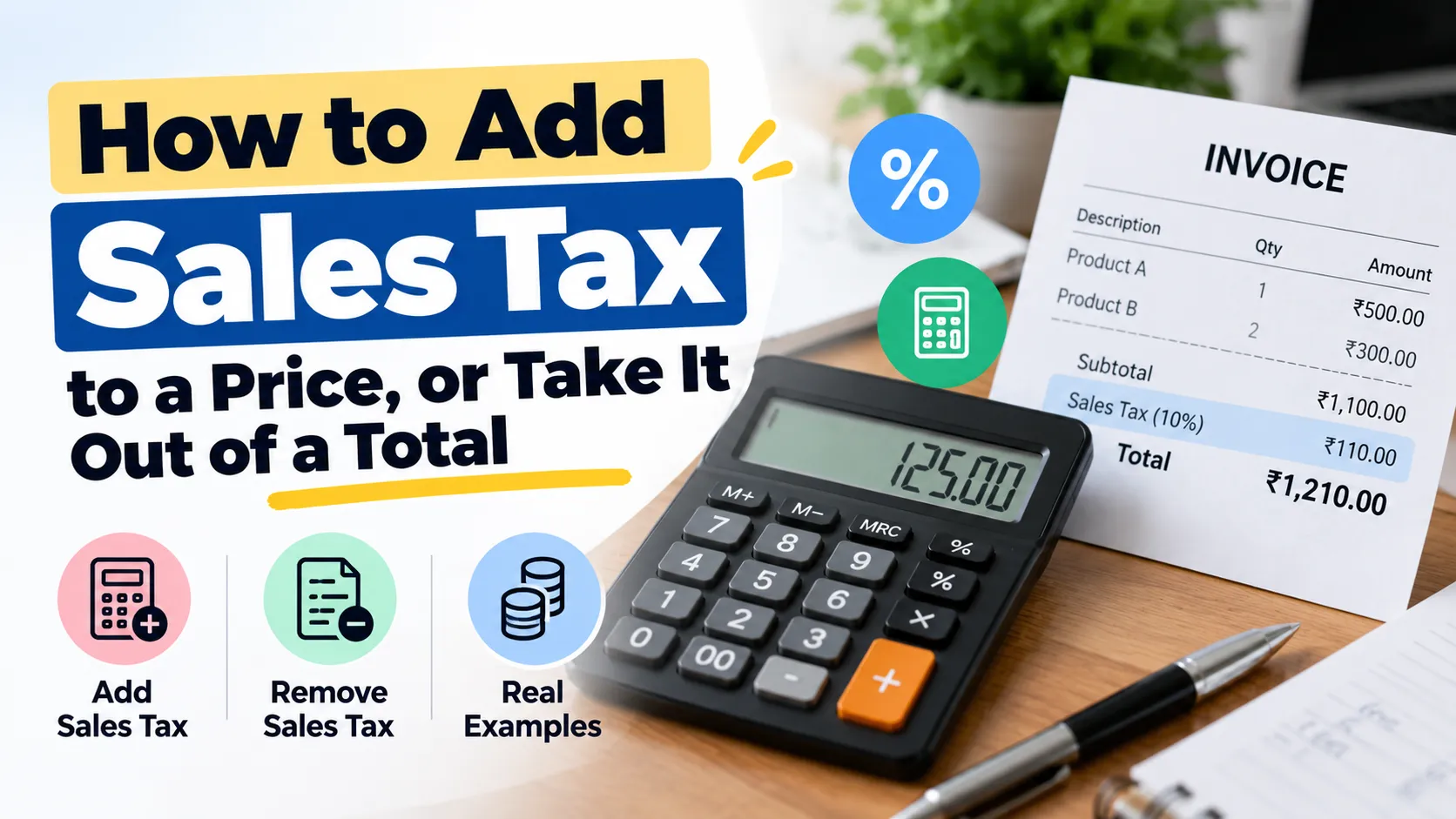
There are two versions of the sales tax question. In one, you know the price and need the total. In the other, you have a total, maybe from a receipt, an invoice or a card statement, and you need to know what the price was before tax was added.
Both come down to one number: 1 plus the tax rate as a decimal. Multiply by it to add tax. Divide by it to take tax out.
Adding tax to a price
Convert the rate to a decimal, add 1, and multiply.
At 7.5 percent, the number is 1.075. For a $35.00 item:
$35.00 × 1.075 = $37.625, which rounds to $37.63
That is the total. The tax itself is $2.63.
Taking tax out of a total
Divide by the same number instead.
Say a receipt total is $108.25 and the rate is 8.25 percent. Divide by 1.0825:
$108.25 ÷ 1.0825 = $100.00
The price before tax was $100.00, and the tax was $8.25. You can run the earlier example backward to prove it works: $37.63 ÷ 1.075 comes to $35.00.
Why you can’t just subtract the percentage
This is the mistake behind most wrong answers. It is tempting to take 8.25 percent of $108.25 and subtract it. That gives $99.32, which is 68 cents too low.
The reason is that the tax was charged on the pre-tax price, not on the total. Taking 8.25 percent of the bigger number removes too much. Dividing by 1.0825 undoes the original multiplication exactly.
How much of the total is tax?
If you only need the tax amount inside a total, multiply the total by the rate divided by (1 + rate). A quicker way to think about it is that the tax is always a bit less than the rate itself, as a share of the total.
| Sales tax rate | Tax as a share of the total |
|---|---|
| 5% | 4.76% |
| 7% | 6.54% |
| 8.25% | 7.62% |
| 10% | 9.09% |
At 8.25 percent, a $108.25 total contains 7.62 percent tax, which is $8.25.
Spreadsheet formulas
Put the price or total in cell A2 and the rate in B2, formatted as a percentage (for example 8.25%).
- Total with tax added:
=A2*(1+B2) - Price before tax, from a total:
=A2/(1+B2) - Tax inside a total:
=A2-A2/(1+B2)
These work the same way in Excel and Google Sheets. Use =ROUND(A2/(1+B2),2) if you want the result rounded to the cent.
Where this comes up
- Expense reports, when a receipt shows only the total
- Invoices for clients, where you need the pre-tax amount for your books
- Comparing prices between shops or states that charge different rates
- Checking a charge on a statement that looks too high
The same method works for VAT. At the UK’s standard 20 percent rate, divide a VAT-inclusive price by 1.2 to get the price before VAT.
Don’t forget to use the right rate
Everything above depends on the rate. If you aren’t sure of yours, read how to find your sales tax rate, and for the full formula with discounts and multiple items, see how to calculate sales tax.
To skip the arithmetic, the Sales Tax Calculator has a mode for each direction. Pick add or remove, enter the rate, and read the result.
This article is general information, not tax advice.